Have you ever felt lost in the endless world of GitHub repositories or puzzled by your Instagram connections?
Welcome back to our web scraping series. In this third part, I will try to show you two practical projects: a GitHub Repository Scraper and an Instagram Non-Follower Finder. These projects will not only enhance your scraping skills but also provide real-world applications of these techniques. **GitHub Repository Scraper **will be helping us to navigate through the repositories on GitHub, making it easier to find valuable resources. Meanwhile, **Instagram Non-Follower Finder **will offer insights into your social media connections by identifying who isn’t following you back on Instagram.
These are unofficial ways to interact with these websites you can also check both GitHub REST API & Instagram’s API** **through these links.

So if you want to catch up you can read previous two parts:
Part I: It was about html structure of page and how can we interact with page via BeautifulSoup and Request modules.
Web Scraping Series Part I — IMDb’s Most Popular Movies with Requests and BeautifulSoup
Part II: I tried to show how can we interact with more dynamic pages such as X platform and I showed how you can use browser automation tool called Selenium in this part.
Web Scraping Series Part II — X Feed & Selenium
GitHub Repository Scraper

| Importing libraries
from selenium import webdriverfrom selenium.webdriver.common.by import Byfrom selenium.webdriver.common.keys import Keysimport timeimport openpyxlfrom selenium.webdriver.common.action_chains import ActionChainsfrom selenium.common.exceptions import NoSuchElementException
| Function to Initialize Things We Need and Enter GitHub
# Replace these with your actual GitHub username and passwordusername = 'Your Username'password = 'Your Password'# Initialize WebDriverbrowser = webdriver.Chrome()actions = ActionChains(browser)#Initialize Excel Workbookwb = openpyxl.Workbook()ws = wb.activews.append(['Repository Name', 'URL']) # Column Headers# Open GitHubbrowser.get('https://github.com/')# Click on the "Sign in" buttonsign_in_button = browser.find_element(By.LINK_TEXT, 'Sign in')time.sleep(3)sign_in_button.click()time.sleep(5)# Enter username and password, then log inusername_field = browser.find_element(By.ID, 'login_field')password_field = browser.find_element(By.ID, 'password')username_field.send_keys(username)time.sleep(5)password_field.send_keys(password)time.sleep(3)# Submit the login formpassword_field.send_keys(Keys.RETURN)# Wait for the main page to loadtime.sleep(5)
| Function to find Search Area and Send Search Input
- You can change search input according to your needs.
# Click on the expand search buttonexpand_search_button = browser.find_element(By.CLASS_NAME, 'AppHeader-search-whenNarrow')expand_search_button.click()# Wait for the search area to expandtime.sleep(3) # Again, it's better to use explicit waits here# Find the search input field, send the search query, and press Entersearch_field = browser.find_element(By.NAME, 'query-builder-test')time.sleep(3)search_field.send_keys("machine learning")time.sleep(5)actions.send_keys(Keys.RETURN)actions.perform()time.sleep(5)
| Search Repositories Through Pages and Write Data to Excel
# Extract and print the repository names and URLs# Here I set range 1 to 16 you can change it so that it can go to endfor page in range(1, 16): # Extract repository names and URLs repo_elements = browser.find_elements(By.CSS_SELECTOR, '.Box-sc-g0xbh4-0.bItZsX .search-title a') for repo_element in repo_elements: name = repo_element.text url = repo_element.get_attribute('href') ws.append([name, url]) # Write data to Excel workbook # Find and click the 'Next' button try: next_button = browser.find_element(By.CSS_SELECTOR, 'a[rel="next"]') next_button.click() time.sleep(5) # Wait for the next page to load except NoSuchElementException: break # 'Next' button not found, exit the loop
| Save Excel Workbook and Close the Browser
# Save the workbookwb.save('github_repositories.xlsx')# Close the browserbrowser.quit()
First I have done this process by saving data to text file which you can guess it was messy then I tried to save the data into excel workbook which is much better.
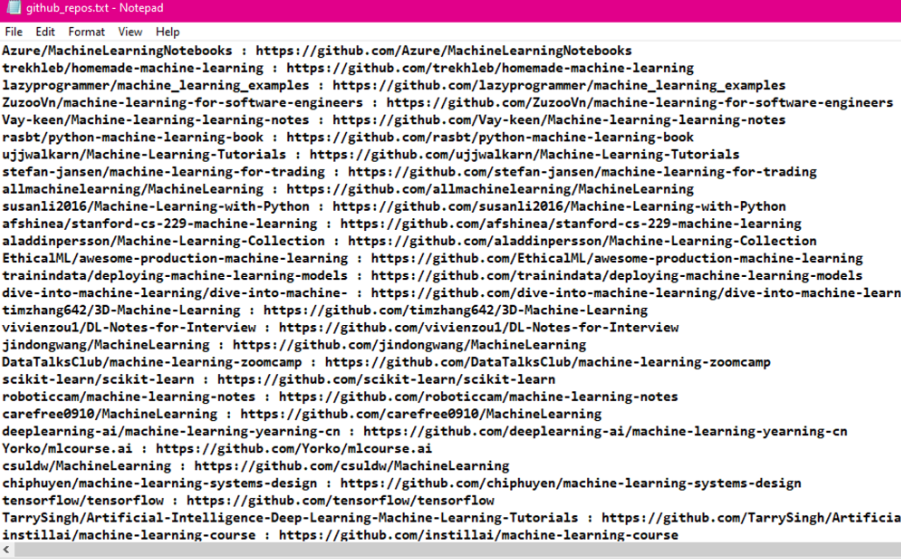
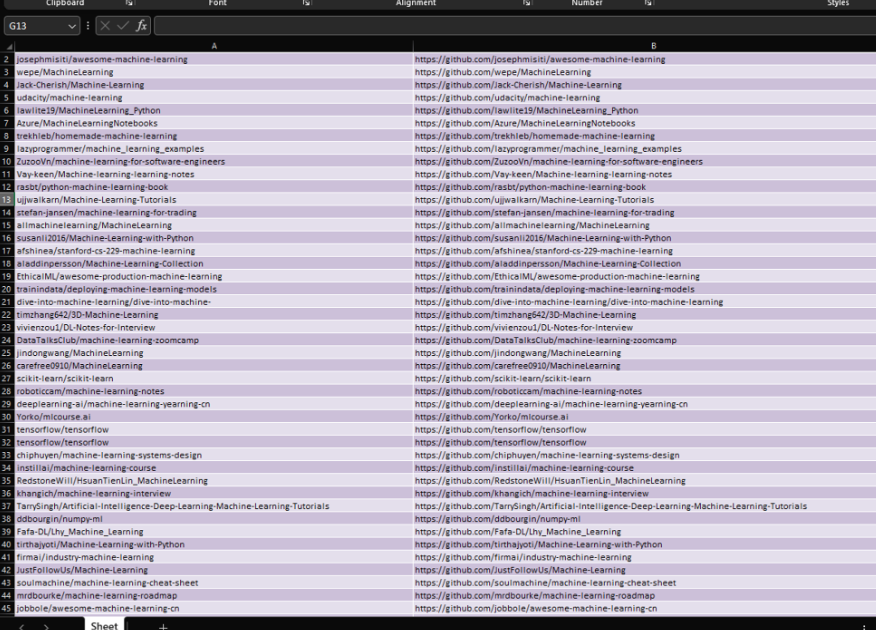
Here is a video of how we can scrape data with selenium.
https://medium.com/media/bdd9d042ff5eaa379b126ffbd6d8a5b9/href
Instagram Non-Follower Finder

| Importing libraries
from selenium import webdriverfrom selenium.webdriver.common.by import Byfrom selenium.webdriver.common.keys import Keysimport timeimport openpyxlfrom selenium.webdriver.common.action_chains import ActionChainsfrom selenium.common.exceptions import NoSuchElementExceptionfrom bs4 import BeautifulSoup
| Initialize Things We Need and Enter Instragram
browser = webdriver.Chrome()actions = ActionChains(browser)username_text = "Username"password_text = "Password"#Initialize Excel Workbookwb = openpyxl.Workbook()ws = wb.active# Column Headersws.append(['Followers', 'Following', 'Non-Followers'])browser.get("https://www.instagram.com/")time.sleep(2)username = browser.find_element(By.NAME, "username")password = browser.find_element(By.NAME, "password")username.send_keys(username_text)time.sleep(5)password.send_keys(password_text)time.sleep(3)actions.send_keys(Keys.RETURN)actions.perform()time.sleep(10)save_info = browser.find_element(By.TAG_NAME, "button")save_info.click()time.sleep(20)# Using XPath to find the button by its textturn_on_button = browser.find_element(By.XPATH, "//button[text()='Not Now']")turn_on_button.click()time.sleep(5)
| Open Followers Section and Scroll down Until the End
browser.get("https://www.instagram.com/{}/followers/".format(username_text))time.sleep(15)#The following variable is for scrolling down jscommand = """followers = document.querySelector("._aano");followers.scrollTo(0, followers.scrollHeight);var lenOfPage=followers.scrollHeight;return lenOfPage;"""lenOfPage = browser.execute_script(jscommand)match=Falsewhile(match==False): lastCount = lenOfPage time.sleep(1) lenOfPage = browser.execute_script(jscommand) if lastCount == lenOfPage: match=Truetime.sleep(5)
| Find Followers and Store Them in followersList
followersList = []html_content = browser.page_sourcesoup = BeautifulSoup(html_content, 'html.parser')follower_elements = soup.find_all('span', class_='_ap3a _aaco _aacw _aacx _aad7 _aade')for follower in follower_elements: followersList.append(follower.text)print("Followers: {}".format(followersList))
| Open Following Section and Scroll down Until the End
browser.get("https://www.instagram.com/{}/following/".format(username_text))time.sleep(15)lenOfPage = browser.execute_script(jscommand)match=Falsewhile(match==False): lastCount = lenOfPage time.sleep(1) lenOfPage = browser.execute_script(jscommand) if lastCount == lenOfPage: match=Truetime.sleep(5)
| Find Following and Store Them in followingList
html_content = browser.page_sourcesoup = BeautifulSoup(html_content, 'html.parser')following_elements = soup.find_all('span', class_='_ap3a _aaco _aacw _aacx _aad7 _aade')for following in following_elements: followingList.append(following.text)print("Following: {}".format(followingList))
| Find Non-Followers and Store Them in not_follower
follows = set(followersList)following = set(followingList)not_follower = following.difference(follows)
| Write Data to Excel
# Writing to Excel# Write Followersrow = 1 # Start from the second row (first row is for headers)for follower in followersList: ws.cell(row=row, column=1, value=follower) row += 1# Write Followingrow = 1 # Reset row for followingfor follow in followingList: ws.cell(row=row, column=2, value=follow) row += 1# Write Non-Followersrow = 1 # Reset row for non-followersfor non_follow in not_follower: ws.cell(row=row, column=3, value=non_follow) row += 1
| Save Excel Workbook and Close the Browser
wb.save('non_follower.xlsx') browser.close()
Here is a video of how we can scrape data with selenium and find non-followers.
https://medium.com/media/d4f33ed7811df98e6f9ebb2b55e9136a/hrefThank you for taking the time to read through this piece. I’m glad to share these insights and hope they’ve been informative. If you enjoyed this article and are looking forward to more content like this, feel free to stay connected by following my Medium profile. Your support is greatly appreciated. Until the next article, take care and stay safe! For all my links in one place, including more articles, projects, and personal interests, check out.
| [yavuzertugrul | Twitter, Instagram | Linktree](https://linktr.ee/yavuzertugrul?utm_source=linktree_profile_share<sid=e03f8f65-ddc2-43cd-b894-6dcbdd2ac94b) |
Web Scraping Series Part III— Practice with Instagram & GitHub was originally published in Level Up Coding on Medium, where people are continuing the conversation by highlighting and responding to this story.