Welcome back to our Web Scraping Series. In second part, we’re focusing on X, a platform with up-to-minute information. With the help of Selenium, we will explore the techniques and tools needed to efficiently scrape data from X. This project will provide practical insights into handling dynamic web content, enabling us to extract valuable data from one of the world’s most active online communities. Whether you’re an engineer trying to learn scraping dynamic data or just trying to scrape data from web for fun purposes this guide is designed for you to navigate the vast and ever-changing data ocean of X.
Let’s Start with what is Selenium:
Selenium
Selenium simply automates web browsers. It is an open-source suite of tools and libraries that is used for browser automation.
Importance of Selenium
- In software development, it’s important to test things quickly and accurately. Doing tests by hand takes a lot of time and sometimes people make mistakes. Using Selenium Automation for testing, helps us do these tests faster and more correctly. This means we make fewer mistakes and get more reliable results every time we test.
- When we’re looking at websites, we want to find the information that we need as fast as possible and automating this process can be achievable with Selenium.
- A key feature we’ll explore is the reusability of scripts. By altering just the text input in a single script, we can efficiently collect a wide range of data from X. This showcases how one well-designed script can be versatile and adaptable for different data gathering needs.
For more information related with Selenium you can check this unofficial documentation
You can install Selenium with this code line.
pip install selenium
Selenium requires a driver to interface with the chosen browser. You can check the following websites for spesific driver you wanted to use.
- ChromeDriver - WebDriver for Chrome
-
[Microsoft Edge WebDriver Microsoft Edge Developer](https://developer.microsoft.com/en-us/microsoft-edge/tools/webdriver/) - Releases · mozilla/geckodriver
- WebDriver Support in Safari 10
| for more information you can check [WebDriver | Selenium](https://www.selenium.dev/documentation/webdriver/) which is official documentation. |
Sample Code
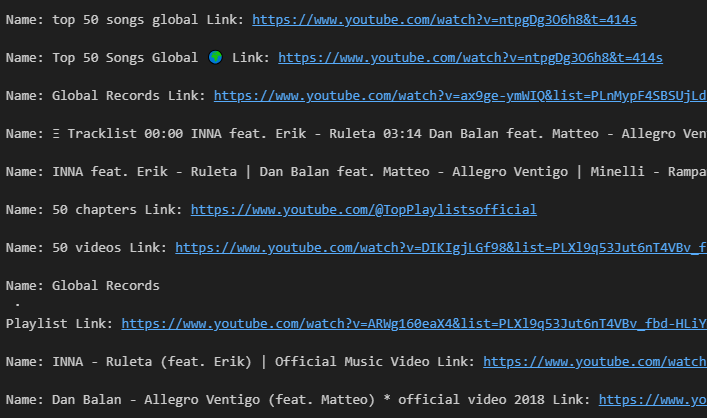
With the following sample code I will be demonstrating how to obtain data from YouTube
from selenium import webdriverfrom selenium.webdriver.common.by import By# Set up the Chrome WebDriverdriver = webdriver.Chrome()# Navigate to YouTube's top 50 global song pagedriver.get("https://www.youtube.com/results?search_query=top+50+song+global+")# Find all the links and names on the pagelinks = driver.find_elements(By.TAG_NAME, 'a')names = driver.find_elements(By.TAG_NAME, 'yt-formatted-string')videos = zip(names, links)# Print the href attribute and title of each linkfor name, link in videos: href = link.get_attribute('href') v_name = name.text if href and v_name: print("Name: {} Link: {}\n".format(v_name, href))# Close the browserdriver.quit()
With this simple code I can obtain top 50 global song related data of youtube with its name and video link, I only printed them for now but we can store them in various ways from text to excel.
In the Part-I I talked about basic html structure you can go and check how website is built and how we can interact with it.
Finding Elements: XPath and CSS Selectors
XPath and CSS Selectors are two ways to find and select specific parts of a web page (like a search bar, button, or a piece of information) so we can interact with them or get information from them.
What is XPath?
It’s a way to navigate through the HTML structure. It allows us to find elements by specifying a path through the structure. For example, we can tell Selenium to find a button and click it inside a certain section of the page.

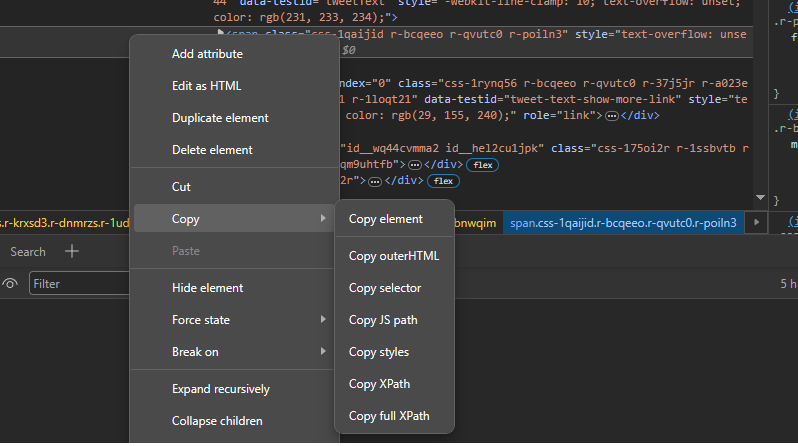
So from here you can select “Copy XPath” to copy it.
As a result, we get something like this:
//*[@id="id__se3bnt9344"]/span
What is CSS Selector?
This is another way to find elements, but it uses the styling information of the page. For example, if you know a button has a certain class name used for its style, you can tell Selenium to find the button using that class name.
After we analyzed everything let’s dive into the real action
| Importing Libraries
from selenium import webdriverimport timefrom selenium.webdriver.common.by import Byfrom selenium.webdriver.common.keys import Keysfrom selenium.webdriver.common.action_chains import ActionChains
| Initialize the Chrome WebDriver & Open X’s homepage
browser = webdriver.Chrome()actions = ActionChains(browser)browser.get("https://twitter.com/")time.sleep(3) # wait for page to load
| Locate Elements on the Login Page and Enter X
# Locate and click on the login buttonlog_in = browser.find_element(By.XPATH, "/html/body/div/div/div/div[2]/main/div/div/div[1]/div/div/div[3]/div[5]/a/div")log_in.click()# Wait for the login page to loadtime.sleep(5) # Find the username input field and enter the usernameusername = browser.find_element(By.TAG_NAME, 'input')username.send_keys("username")time.sleep(5)# Locate and click the 'Next' buttonnext_button = browser.find_element(By.XPATH,"//*[@id='layers']/div[2]/div/div/div/div/div/div[2]/div[2]/div/div/div[2]/div[2]/div/div/div/div[6]")next_button.click()time.sleep(5)# Find the password input field and enter the passwordpasword = browser.find_element(By.NAME, 'password')pasword.send_keys("password")time.sleep(3)# Locate and click the 'Log in' buttonlogin = browser.find_element(By.XPATH, "//*[@id='layers']/div[2]/div/div/div/div/div/div[2]/div[2]/div/div/div[2]/div[2]/div[2]/div/div[1]/div/div/div")login.click()time.sleep(5)# Wait for the main X page to load after login################################################################
| Locate Elements on the Feed Page and Send Input
# Locate the search button and the search input fieldsearchButton = browser.find_element(By.XPATH, '//a[@aria-label="Search and explore"]')searchArea = browser.find_element(By.TAG_NAME, 'input')# Click the search buttonsearchButton.click()time.sleep(7)# Refresh the page to ensure search area is activebrowser.refresh()time.sleep(7)# Find the search input field again and enter the search termsearchArea = browser.find_element(By.TAG_NAME, 'input')searchArea.send_keys("robotics news") #you can change input field with text you want to searchtime.sleep(5)# Press Enter to start the searchactions.send_keys(Keys.ENTER)actions.perform()time.sleep(5)
| Scrolling Through Content Page
# Scroll down the page and load more tweetslenOfPage = browser.execute_script("window.scrollTo(0, document.body.scrollHeight);var lenOfPage=document.body.scrollHeight;return lenOfPage;")match=Falsewhile(match==False): lastCount = lenOfPage time.sleep(3) lenOfPage = browser.execute_script("window.scrollTo(0, document.body.scrollHeight);var lenOfPage=document.body.scrollHeight;return lenOfPage;") if lastCount == lenOfPage: match=Truetime.sleep(5)
| Collecting Tweets Through Content Page
# Collect tweets from the pagetweets = []elements = browser.find_elements(By.CSS_SELECTOR, 'div[data-testid="tweetText"]')for element in elements: tweets.append(element.text)tweetCount = 1
| Writing Tweets To a Text File and Closing Browser
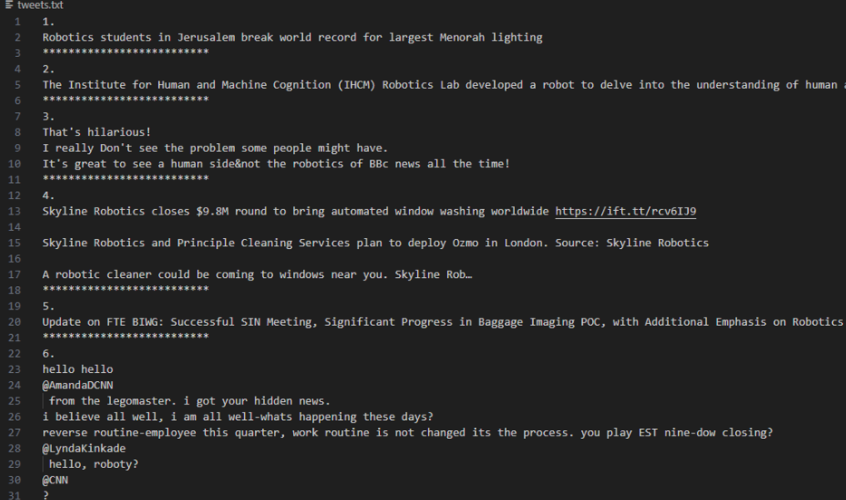
# Write the collected tweets to a text filewith open("tweets.txt","w",encoding = "UTF-8") as file: for tweet in tweets: file.write(str(tweetCount) + ".\n" + tweet + "\n") file.write("**************************\n") tweetCount += 1# Close the browserbrowser.close()
Here is a video of how we can scrape data with automated browser.
https://medium.com/media/04cd71fd0a93bc425f9329819557556a/href
The Complete Code
from selenium import webdriverimport timefrom selenium.webdriver.common.by import Byfrom selenium.webdriver.common.keys import Keysfrom selenium.webdriver.common.action_chains import ActionChainsbrowser = webdriver.Chrome()actions = ActionChains(browser)browser.get("https://twitter.com/")time.sleep(3) # wait for page to load# Locate and click on the login buttonlog_in = browser.find_element(By.XPATH, "/html/body/div/div/div/div[2]/main/div/div/div[1]/div/div/div[3]/div[5]/a/div")log_in.click()# Wait for the login page to loadtime.sleep(5) # Find the username input field and enter the usernameusername = browser.find_element(By.TAG_NAME, 'input')username.send_keys("username")time.sleep(5)# Locate and click the 'Next' buttonnext_button = browser.find_element(By.XPATH,"//*[@id='layers']/div[2]/div/div/div/div/div/div[2]/div[2]/div/div/div[2]/div[2]/div/div/div/div[6]")next_button.click()time.sleep(5)# Find the password input field and enter the passwordpasword = browser.find_element(By.NAME, 'password')pasword.send_keys("password")time.sleep(3)# Locate and click the 'Log in' buttonlogin = browser.find_element(By.XPATH, "//*[@id='layers']/div[2]/div/div/div/div/div/div[2]/div[2]/div/div/div[2]/div[2]/div[2]/div/div[1]/div/div/div")login.click()time.sleep(5)# Wait for the main X page to load after login################################################################# Locate the search button and the search input fieldsearchButton = browser.find_element(By.XPATH, '//a[@aria-label="Search and explore"]')searchArea = browser.find_element(By.TAG_NAME, 'input')# Click the search buttonsearchButton.click()time.sleep(7)# Refresh the page to ensure search area is activebrowser.refresh()time.sleep(7)# Find the search input field again and enter the search termsearchArea = browser.find_element(By.TAG_NAME, 'input')searchArea.send_keys("robotics news") #you can change input field with text you want to searchtime.sleep(5)# Press Enter to start the searchactions.send_keys(Keys.ENTER)actions.perform()time.sleep(5)# Scroll down the page and load more tweetslenOfPage = browser.execute_script("window.scrollTo(0, document.body.scrollHeight);var lenOfPage=document.body.scrollHeight;return lenOfPage;")match=Falsewhile(match==False): lastCount = lenOfPage time.sleep(3) lenOfPage = browser.execute_script("window.scrollTo(0, document.body.scrollHeight);var lenOfPage=document.body.scrollHeight;return lenOfPage;") if lastCount == lenOfPage: match=Truetime.sleep(5)# Collect tweets from the pagetweets = []elements = browser.find_elements(By.CSS_SELECTOR, 'div[data-testid="tweetText"]')for element in elements: tweets.append(element.text)tweetCount = 1# Write the collected tweets to a text filewith open("tweets.txt","w",encoding = "UTF-8") as file: for tweet in tweets: file.write(str(tweetCount) + ".\n" + tweet + "\n") file.write("**************************\n") tweetCount += 1# Close the browserbrowser.close()
Thank you for taking the time to read through this piece. I’m glad to share these insights and hope they’ve been informative. If you enjoyed this article and are looking forward to more content like this, feel free to stay connected by following my Medium profile. Your support is greatly appreciated. Until the next article, take care and stay safe! For all my links in one place, including more articles, projects, and personal interests, check out.
| [yavuzertugrul | Twitter, Instagram | Linktree](https://linktr.ee/yavuzertugrul?utm_source=linktree_profile_share<sid=1de72305-76db-4dda-abda-e6d3ed0c977c) |
Web Scraping Series Part II — X Feed & Selenium was originally published in Level Up Coding on Medium, where people are continuing the conversation by highlighting and responding to this story.